

Settings, themes and shortcuts
Every setting explained, including Control Room themes and the optional keyboard shortcuts.
Open Settings from the status bar. Settings are saved to your account, so they follow you to any device, except those marked this device. Each change is saved straight away and confirmed at the top of the page.
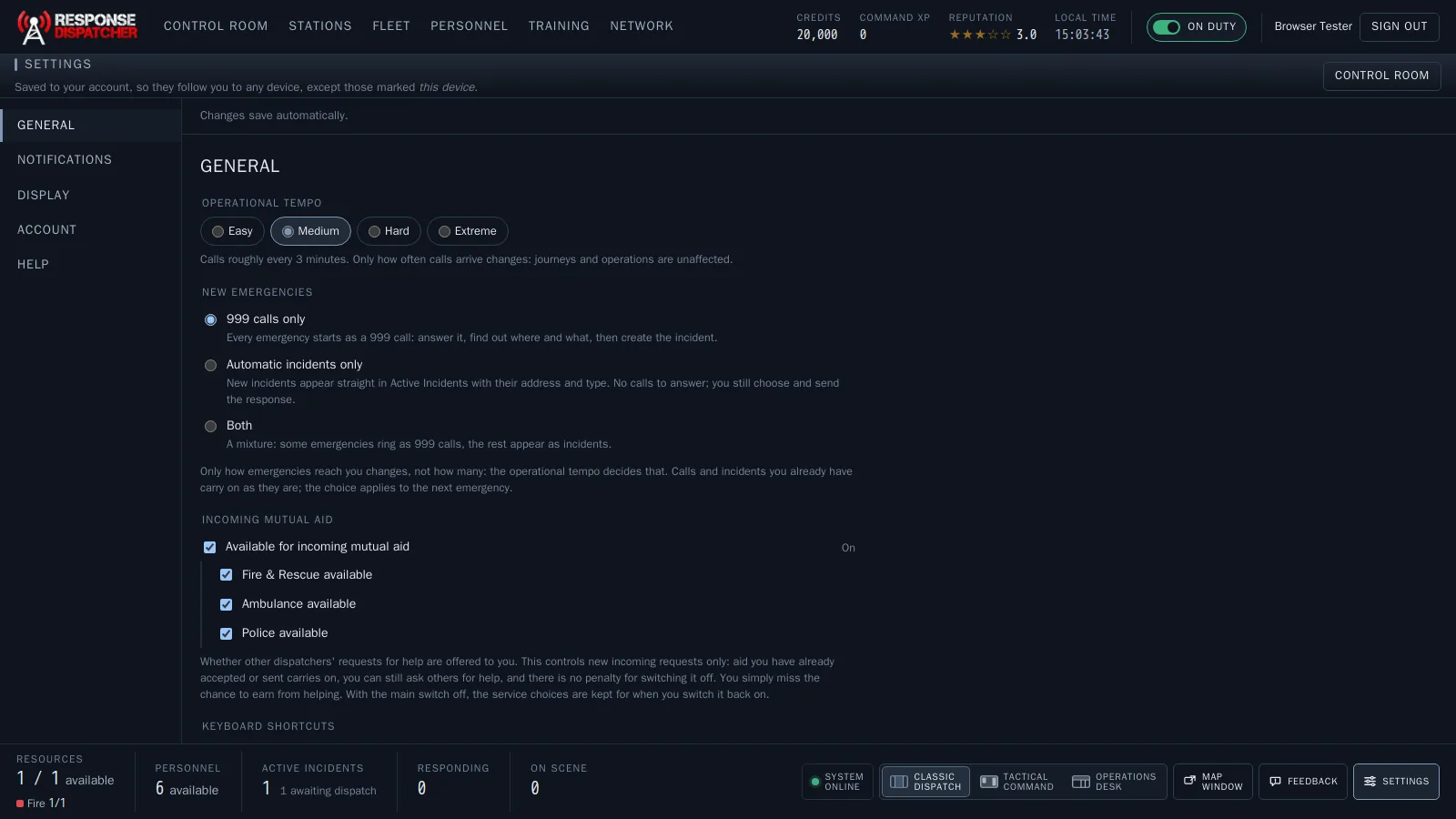
General
| Setting | What it does |
|---|---|
| Operational tempo | How often new emergencies arrive while you are On Duty: Easy (about every 5 minutes), Medium (about 3), Hard (about 1) or Extreme (about 30 seconds). See On Duty, Off Duty and tempo. |
| New emergencies | 999 calls only, Automatic incidents only, or Both. See Choosing how emergencies arrive. |
| Incoming mutual aid | Whether other dispatchers' requests for help are offered to you, overall and per service. See Mutual aid. |
| Keyboard shortcuts | Optional single-key shortcuts (below). |
Notifications
Sound on or off and its volume, plus Spoken radio: optional radio messages from your crews in British English, spoken by your browser's own voices (this device only, with its own Radio volume). Crews give their call sign and what they are doing, never an address, road, hospital name or arrival time: those stay on the board, the map and the radio log. You are Control, so Control never speaks or replies, and crews do not start with "Control". Each crew keeps its own voice, and urgent calls for help are spoken a little faster. Everything spoken is also written in the radio log, so nothing depends on hearing it. Browsers only play sound after you have clicked or typed on the page.
- Radio detail (your account): Standard (the default) says what a unit is responding to once, then short status updates: "Pump One Two, mobile to a house fire." … "Pump One Two, in attendance." … "Ambulance Four Three, clear and available." Short gives the call sign and status only: "Pump One Two, mobile." Short also leaves out routine updates from the scene (they are still written in the log).
- Speak important developments (your account, on by default): requests for help, a fire spreading or a patient getting worse, pre-alerts to hospital and crew reports that need your decision. Turning it off only stops them being spoken: the alert, the decision and the radio log are exactly the same.
- Call signs are spoken digit by digit (PUMP 12 is "Pump One Two", CAR 21 is "Response Two One"); what you see written does not change. Some routine messages are written but never spoken: a unit back at its station, a unit acknowledging a stand-down, and arrivals and handovers at hospitals and custody suites.
Display
- Appearance: System (follows your device), Light or Dark. Light is a soft, grey control-room light designed for long sessions, with every status and priority colour easy to read.
- Control Room theme: see below.
- Control Room layout: Classic Dispatch, Tactical Command or Operations Desk.
- Accent: a subtle colour for highlights (Neutral or a service colour).
- Distance units: Miles (the default) or Kilometres. Every distance and speed in the game follows your choice at once, including road distances in the dispatch list, routes, ranges and messages. Very short distances show in yards or metres. Saved to your account, so it follows you to any device.
- Map: how the map tiles look, and Radio indicators: a radio symbol over the crew on the map and an outline on the incident it is about (this device, on unless you turn it off).
Designing your Control Room theme
Choose a preset or mix your own colours. Presets: Default Dark, Default Light, Navy Dark, Midnight Blue, Purple Command, Emerald, Crimson, Amber and Graphite.
To make your own, pick a Dark or Light base and adjust the main background, panels, buttons and accent with the Hue, Intensity and Brightness sliders. The preview updates as you move them and your choice is saved a moment later. Reset to default goes back to the standard look.
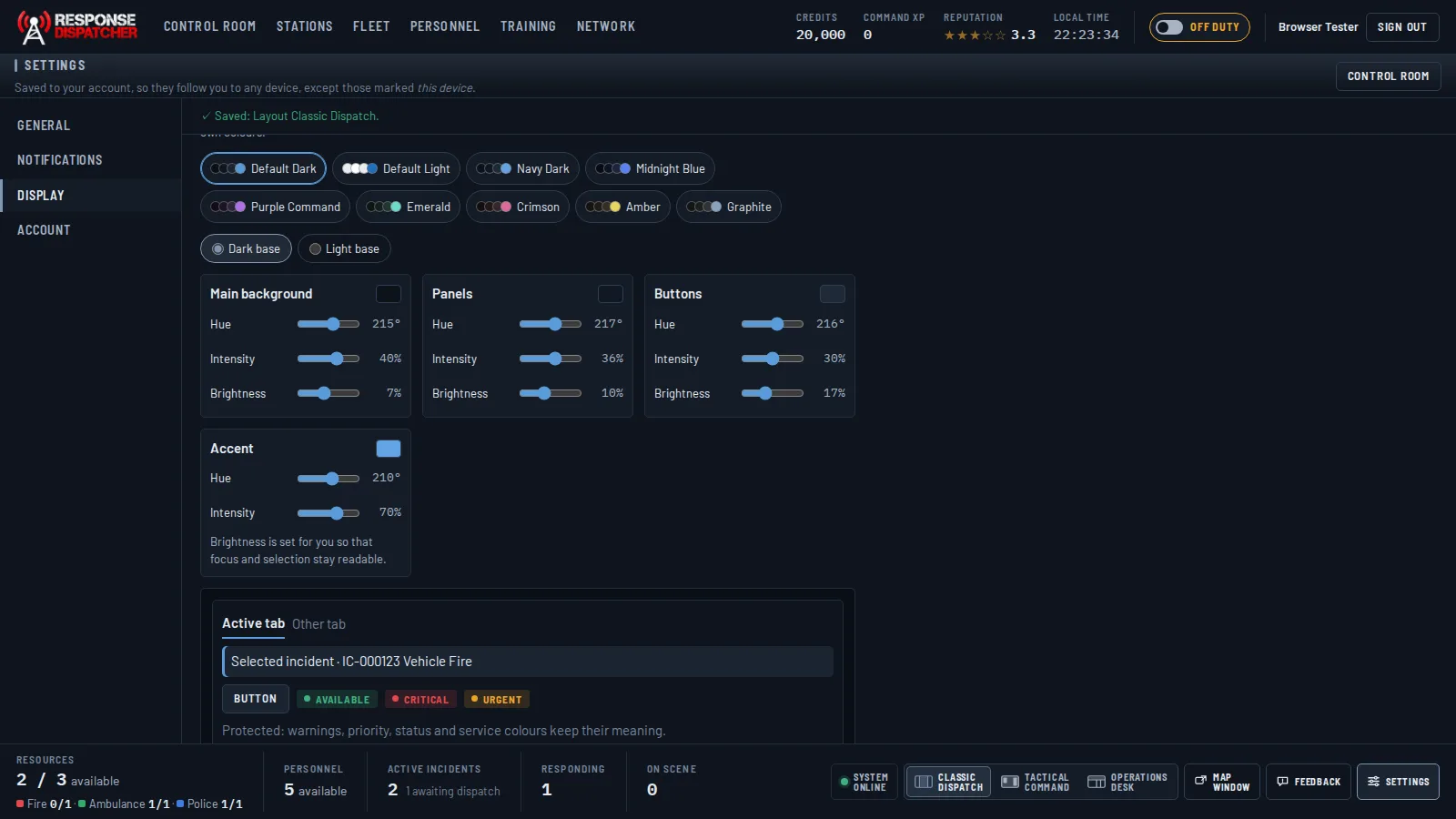

A theme belongs to its base: a dark theme shows while your Appearance is Dark. If you switch Appearance to System or Light, your dark theme is kept and returns when you switch back.
Keyboard shortcuts
Shortcuts are off until you turn them on in Settings > General. They never work while you are typing, while a window such as Dispatch is open, or with Ctrl, Alt or Command held, so your browser's own keys keep working.
| Key | Action |
|---|---|
| Q | Go to the incident queue |
| O | Go to the selected incident's details |
| D | Open Dispatch for the selected incident (nothing is sent until you confirm) |
| R | Show the resources board |
| L | Show the radio log |
| C | Go to the 999 call |
| ? | Show the list of shortcuts |
The arrow keys move through the incident board and the resources board, and Enter opens the item under the cursor, with or without shortcuts turned on.
Help
The last section, Help, sums up the essentials in a few lines: how new emergencies arrive, how incidents tell you what they need, Credits and Command XP, going Off Duty automatically and helping other dispatchers. Its links take you straight to the setting they mention, and Report a problem or send an idea opens Feedback.